Upgrade Laptop in low budget is more beneficial than buying a new one. It doesn’t mean that new laptops aren’t worth buying but upgrading from i3 to i7 can be quick and affordable for students. Working on a laptop which takes minutes to open and making noises while turning on kills the vibes for coding, gaming, or video editing.
However, it is worth knowing before making a decision to buy a brand new laptop this festive season, the machine slowing you down probably isn’t dying — it’s just outdated in one or two specific ways, and fixing those is often a fraction of the cost of a new one.
Laptop upgrades on a budget aren’t about replacing everything. Find the vulnerability of the system caused by one or two old elements and change it. Most 3–5 year old laptops are held back by Hard Drive and RAM most of the time. Fixing both can allow users to experience faster and smooth performance.
But how you can upgrade laptop like a brand new is something to understand first before buying anything you find on flipkart or amazon.
Diagnose Your Laptop Internally
This step is crucial because without knowing the cause of your system, how can you fix it? If you skip the diagnosis, and buy $60 RAM but end up waiting for your computer to respond faster and do the work, you wasted your money.
So Open Task Manager on Windows — shortcut keys are Ctrl+Shift+Esc or in MAC — go to Activity Monitor and watch it for a minute while working usually.
Check These Three Things in Your System:
The task manager shows you how much usage has been used to run your apps, if it’s near 100% then your storage drive is the bottleneck — almost certainly a traditional hard disk drive (HDD). Most of the older laptops suffer from this issue that’s why they’re too slow and fixing it (with SSD) is the cheapest and highest impact upgrade for your laptop.
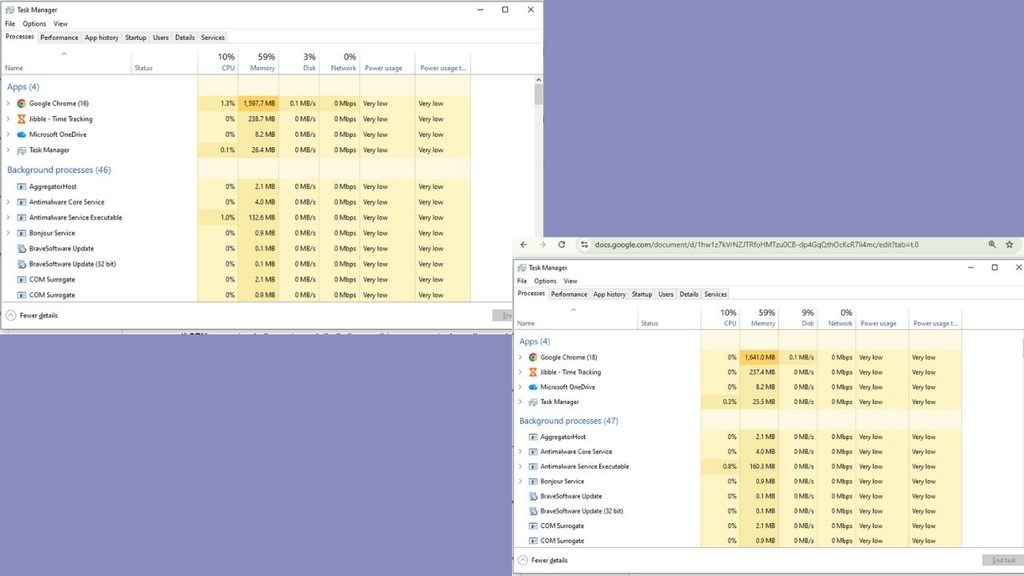
Memory usage above 85% continuously means more RAM is needed. Heavier apps like Zoom, Team and Word running altogether with 15 browser tabs should be run smoothly at 8 GB. But if building applications and gaming is your main course then you need more than 8 GB. Since this amount is default on a lot of budget and mid-range laptops sold in the last five years.
If CPU usage is the thing hitting its limit, that’s one part you generally can’t upgrade on a laptop. CPU bottleneck won’t be solved by swapping components because it is soldered to the motherboard usually so knowing it before you start spending your money on an upgrade that won’t help is important.
Most people diagnosing a “slow laptop” for the first time are surprised to learn its disk, not processor. That distinction is the whole game.
SSD Swap: The Single Best Upgrade You Can Make
By replacing a mechanical hard drive with a Solid State Drive is the single most efficient upgrade that makes a laptop feel like new hardware. It improves the speed and multi-tasking process, boot times can drop from 90+ seconds to under 15 and regular tasks like switching between apps or opening them won’t lag.
A basic 480GB–500GB SATA SSD, such as the Crucial MX500, Kingston A400, or WD Blue, usually costs around ₹2,500–₹3,500 in India, depending on ongoing pricing and sales. The price is far less than buying a whole new laptop, this upgrade can make your older laptop fresh.
Before buying an SSD, confirm two things: whether your laptop has a 2.5-inch SATA bay, an M.2 slot, or both (this determines which SSD form factor you need), and whether it has a spare slot or you’ll be replacing your existing drive entirely. Most laptops from 2016 onward that shipped with an HDD have a 2.5-inch bay that’s a direct, tool-light swap — usually just a few screws on the base panel.
There’s two options always given to you while rebooting, keeping your existing Windows installation and files onto the new drive or clean installation. If you choose to keep, Cloning software like Macrium Reflect (free tier) or EaseUS Todo Backup will help transfer your programs and settings from old HDD onto the new SSD so you don’t need to reinstall and set things up.
If the laptop is too old then fresh Windows installation onto the new SSD is a better option, it removes old or hidden leftover junk which consumed your memory.
See Details:- iPhone Duo Changes the Cost Effectively With These Methods
Add RAM: The Second-Cheapest Speed Fix
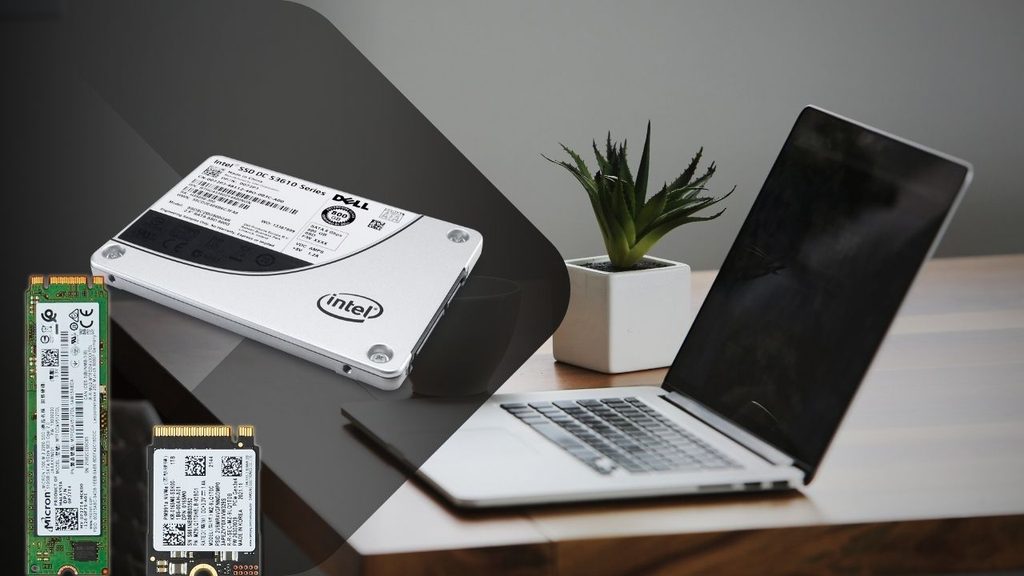
If your diagnostic check flagged high memory usage, this is your next move, and it’s usually inexpensive. Most laptops from the last decade that have 4GB or 8GB of RAM have room to go to 8GB or 16GB, either by adding a stick into a free slot or replacing existing sticks with higher-capacity ones.
It’s not a costly upgrade, an 8GB DDR4 SODIMM stick price is somewhere around
₹1,500-₹2,200 depending on the current market.
Before Buying, Check Which Type Of Ram is Compatible
Your laptop’s supported RAM type (DDR3 vs DDR4 vs DDR5 — check your model’s spec sheet, since installing the wrong type simply won’t work) and its maximum supported capacity, because some budget laptops cap out at 8GB even if there’s a second slot.
The install itself is usually the easiest upgrade on this list — a single panel on the bottom of most laptops, a couple of screws, and the RAM stick clicks into a slot at an angle before you press it flat.
No cloning, no software, no reinstalling anything. If your laptop’s diagnostic showed disk usage as the real bottleneck rather than memory, though, don’t bother with this one first — RAM won’t fix a slow HDD, and you’d be spending money on the wrong problem.
Clean Out the Software Bloat You’ve Been Carrying for Years
Hardware isn’t the whole story. A laptop that’s had the same Windows installation for three or four years accumulates a genuinely surprising amount of drag: startup programs that launch silently every boot, background services from software you uninstalled ages ago, and browser extensions you forgot you added.
Open Task Manager’s Startup tab and disable anything you don’t need running the moment you log in — most people find five to ten programs quietly launching that have no business doing so (Spotify, printer software, half a dozen “helper” apps from programs installed years ago). This alone can shave real time off boot-up without touching a single piece of hardware.
Beyond that, uninstall software you genuinely don’t use anymore, clear out temp files (Windows’ built-in Disk Cleanup or Storage Sense handles this automatically), and check your browser extensions — each one adds a small but real memory and CPU tax that compounds when you’re already running an older machine.
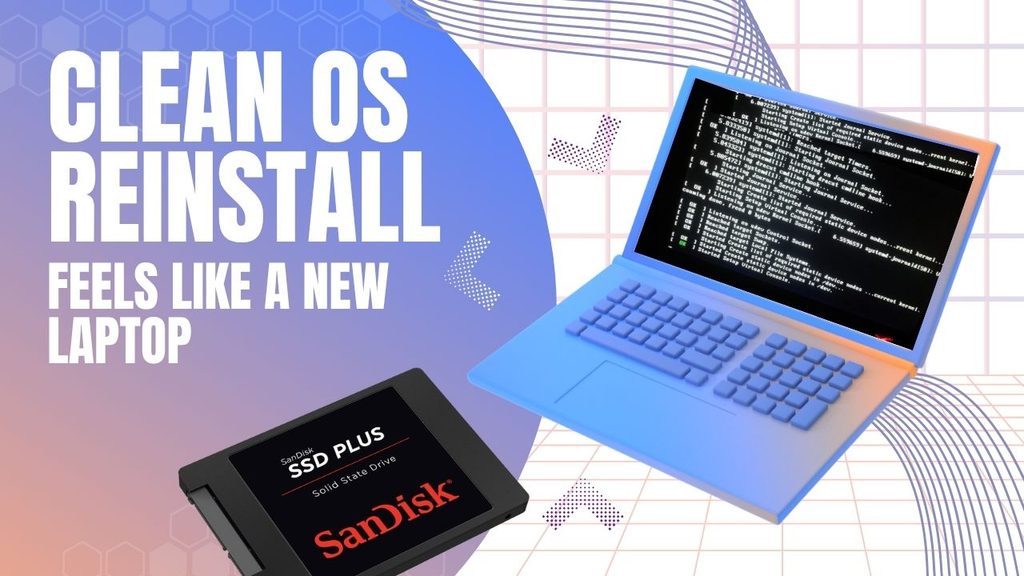
If your laptop has never had a clean OS reinstall after SSD swap, this is the moment to consider it. A fresh Windows install onto new hardware, with only the software you actually use, often produces the single most dramatic “this feels like a new laptop” moment of the entire process — more than any single component swap.
Read More:- How AI Could Change India’s Digital Public Infrastructure
Don’t Skip the Physical Cleaning
This one costs close to nothing and gets ignored constantly. Laptops that have run for years without ever being opened up accumulate dust inside the fan and heatsink assembly, which traps heat, which causes the CPU to throttle its own performance to avoid overheating — meaning your laptop is deliberately slowing itself down to protect itself.
To reduce fan noise and prevent thermal throttling, cleaning fan blades and heatsink fins can be helpful. Replace dried-out thermal paste so it brings down temperature between the CPU and heatsink. It can cost around ₹300, and helps the laptop’s processor maintain its performance for longer under heavy workloads.
This is the cheapest and under-appreciated fix but helps cool the processor because dust buildup and dried thermal paste don’t trigger warning as hard drive does, they just slow your laptop and get a little hotter all the time.
Small External Upgrades That Change How the Laptop Works
Not every upgrade needs to happen inside the case. Coders and Gamers need big screen resolution, a budget external monitor changes the entire experience without spending a new laptop’s cost.

Additionally, better-quality external keyboard and mouse will maximize that experience by making typing and navigating more easy and responsive, even if the internals haven’t changed at all.
A basic cooling pad (₹800-₹1,500) can also help laptops that run hot during longer sessions, buying you more sustained performance during demanding tasks like video calls or heavier multitasking, without opening the machine at all.
Know When Upgrading Laptop Stops Making Sense
If the laptop’s bottleneck isn’t the RAM and disk but CPU then do not spend a single rupee on the laptop upgrade because it’s useless. The process is the one component you almost never can replace on a laptop.
Old laptop battery-life usually degraded to holding half its original charge. Changing that will help if your laptop is just 2-3 years old because a five-plus years old laptop doesn’t come with a user-replaceable battery so that’s where you should start saving for a new laptop. It’s worth actually comparing the two costs side by side rather than assuming the upgrade is always cheaper.
Read More :- Why ChatGPT Ads Deserve a Place In Your 2027 Media Plan
Conclusion
If you’re staring at a slow laptop right now, check Task Manager first. If disk usage is maxed out, an SSD swap is your highest-impact move and should come before anything else. If memory is the constraint, add RAM — it’s cheap and takes ten minutes.
Do both of those, clean out years of startup bloat, blow the dust out of the fans, and you’ve addressed the four things that account for the vast majority of “this laptop feels old” complaints — usually for less than a tenth of what a new laptop would cost.
Overall, if your bottleneck turns out to be the processor itself, no combination of these fixes will get you there, and that’s the one scenario where saving up for new hardware is genuinely the right call instead of the expensive-sounding one.